

For iPad

A project management app that uses the whole iPad

Milestones puts your projects, their milestones and the tasks of the one you’re working on side by side, works with a keyboard and trackpad, and syncs with your iPhone and Mac through iCloud.

Download on the App Store Free for two projects · Works on iPhone, iPad, and Mac.

Updated October 25, 2026 by Yassine Zeriouh, the developer of Milestones

Milestones is a project management app that uses the iPad’s width: your projects in the sidebar, the open project’s milestones next to them, and the tasks of the selected milestone on the right, all on one screen. It’s free for two projects, and one purchase covers iPad, iPhone and Mac.

It’s made for people who run their own projects: students, writers, freelancers, indie developers. It isn’t a team tool, and it doesn’t draw Gantt charts.

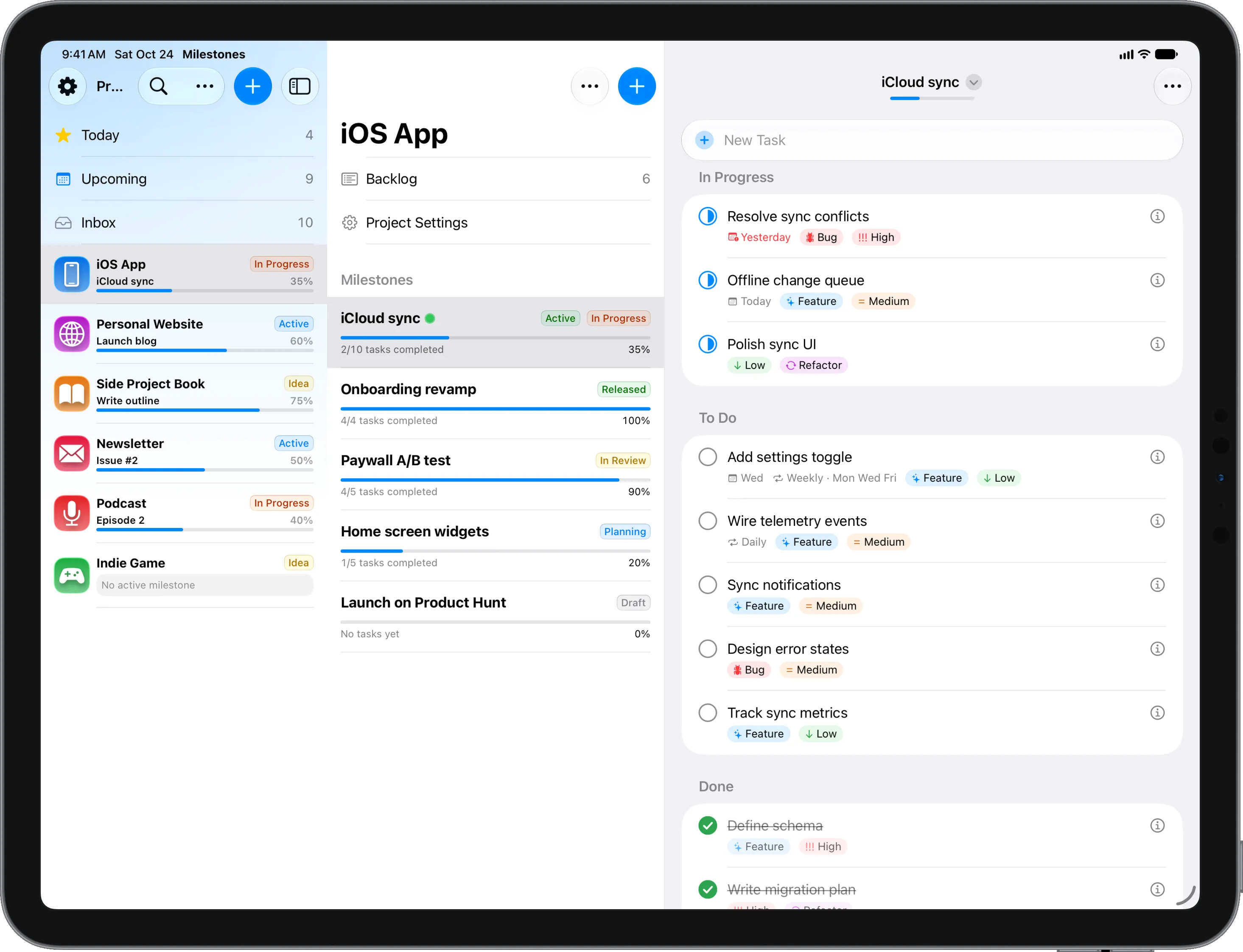
Milestones on iPad: the sidebar with each project’s progress, the open project’s milestones with their progress bars, and the tasks of the active milestone grouped into In Progress, To Do and Done.

The problem

Why most project apps feel wrong on an iPad

What people tend to run into before they find an iPad project app they keep.

A phone app stretched to fill the screen

Many task apps on iPad are their iPhone app made bigger: one list at a time, a lot of empty space and a back button to get anywhere. On a screen that could show a whole project at once, you end up tapping back and forth between a list and its details.

Web tools that fight the touch screen

Browser-based project tools on iPad mean small targets, menus built for a mouse, sign-in screens and often nothing at all without a connection. They work, but the iPad starts to feel like a worse laptop instead of the device you chose to work on.

To-do lists that can’t show a project’s shape

A to-do app is fine until a project has stages. A thesis, a launch or a client job turns into one long list where nothing says which stage is late or how far along you are, so you start keeping a second plan in a note next to it.

A keyboard that only types

If you work with a Magic Keyboard, many apps still send you back to the screen for everything but typing: no shortcuts, no moving through a list with the arrow keys, no way to jump to a project. Every step that isn’t a word is another reach for the glass.

Features

What Milestones does on the iPad

The iPad app, feature by feature. Most of the keyboard work arrived with Milestones 2.0.

Three columns on one screen

Projects and their progress sit in the sidebar, the open project’s milestones in the middle, and the tasks of the selected milestone on the right, grouped into in progress, to do and done. Today, Upcoming, Inbox and simple lists use the whole window instead.

A layout that fits the window

Give Milestones a narrow window next to another app and it switches to the iPhone layout; widen it again and the columns come back. When you open it, it goes straight back to the project and milestone you were last working on, so you pick up where you left off.

Keyboard and menu bar

Milestones fills the iPad’s menu bar with its commands, and holding ⌘ shows every shortcut. You can change any of them in Settings, jump to any project or milestone with ⌘K, move through lists with the arrow keys and open the selected task with Return.

Drag and drop

Drag a task onto another milestone to move it there, or onto the To Do, In Progress and Done bar that appears at the bottom of a list to change its status. Drag a milestone onto another project in the sidebar and it moves there with all of its tasks.

A composer above the list

On a full-width iPad the new-task field sits above the list instead of over the keyboard. Type the date in plain words, like “tomorrow at 5pm” or “every Monday”, add #tags and !1 to !3 for priority, and edit any task in place on its own row.

Kanban boards (Pro)

With Pro, any project and Today, Upcoming and Inbox can be shown as a board with To Do, In Progress and Done columns, and the iPad has room to show all three at once. Columns grow with their cards, and you drag a card from one column to the next.

Pick several at once

Choose Select Tasks, Select Projects or Select Milestones from the More menu and pick each one with a tap. Then change their status, date, priority or tags together, move them to another milestone or project, or delete them, from one bar at the bottom of the screen.

Same projects everywhere

Your projects sync through your own iCloud to iPhone, Mac and Apple Watch, with no Milestones account to create. You can print a task list or save it as a PDF, and with Pro, widgets put your projects on the Home Screen and Lock Screen.

Other options

Other project apps on the iPad, and who they suit

Milestones isn’t the right iPad app for everyone. If one of these describes your work better, start there.

Things 3
A polished personal to-do list for planning your day
Todoist
Every platform, shared projects and filters
OmniFocus 4
Deep GTD task management with reviews and defer dates
Trello
Shared boards for small teams
Notion
Docs, wikis and databases in one workspace
OmniPlan
Gantt charts, dependencies and resources for scheduled projects

Not for everyone

Who Milestones isn’t for

  • Teams that need shared projects, assignees or comments: every project belongs to one person.
  • Gantt charts, dependencies or resource planning: OmniPlan is built for that, on iPad too.
  • Anyone who also works on Windows, Android or in a browser: Milestones runs only on Apple devices.

Milestones on other devices: Mac

FAQ

Frequently asked questions

Is there a free project management app for iPad?

Milestones is free for two projects on the iPad, with no time limit, and archived projects don’t count toward that. Pro unlocks unlimited projects, repeating tasks, Kanban boards and widgets for $5.99 a month, $29.99 a year or $79.99 once, and covers iPhone and Mac too.

Does Milestones work with a keyboard on iPad?

Yes. Its commands fill the iPad’s menu bar, holding ⌘ shows every shortcut, and you can change any shortcut in Settings. ⌘K jumps to a project or milestone, the arrow keys move through lists, and Return opens the selected task for editing.

Does it sync between iPad, iPhone and Mac?

Yes, through your own iCloud, with no Milestones account. Turn on iCloud sync and your projects, milestones and tasks appear on every device signed in to the same Apple Account, including the Apple Watch app. One purchase covers iPad, iPhone and Mac.

Is there a Kanban board on iPad?

Yes, with Pro. Any project, and Today, Upcoming and Inbox, can be shown as a board with To Do, In Progress and Done columns. On an iPad all three columns fit side by side, and you drag a card from one column to the next.

Can I use Milestones next to another app?

Yes. When the window is narrow, Milestones switches to its iPhone layout with one list at a time; give it more room and it goes back to showing projects, milestones and tasks side by side. Nothing about your projects changes between the two.

Can my team use Milestones on their iPads?

Not together. Milestones has no shared projects, assignees or comments, and workspaces are personal. It’s built for people who run their own projects. Teams usually do better with Trello, Notion or another tool built for sharing.

Plan your next project on the iPad

Free for two projects, on iPad, iPhone and Mac. Split one real project into milestones and see how the three columns feel.

Download on the App Store

Free for two projects